


Spec sheet
One list for the whole project: every product, grouped by room, with supplier, status, quantity and price. Tinn opens on it, and it is always on.
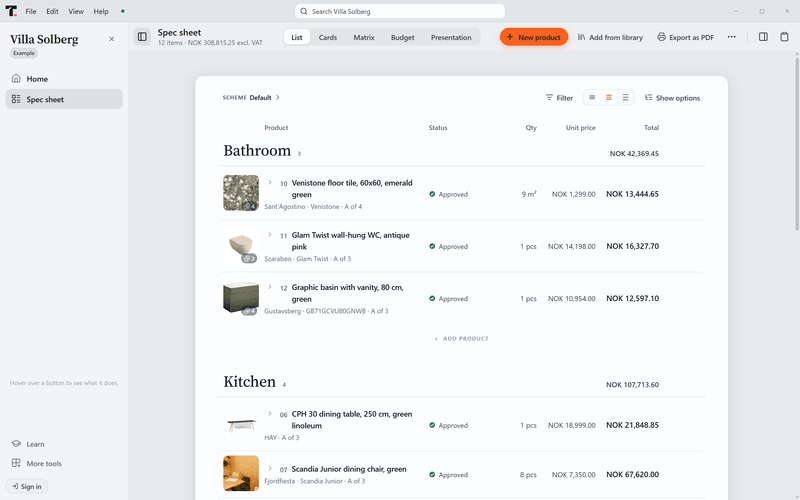
Three things you do all day.
Add a room
Rooms group the sheet and add up on their own. Give a room a short prefix and the product codes follow it.
Add a product
Type it in, clip it from a supplier page, or take it from your saved products. Price times quantity, done.
Move it along
Mark where each product stands as the project moves. Each status has its own shape, so it still reads on a black-and-white print.
Five ways to look at the same products.
Switch view at the top of the sheet. Nothing is copied: change a price in one view and every view shows it.
List
The working view: rows grouped by room, from compact to large pictures.
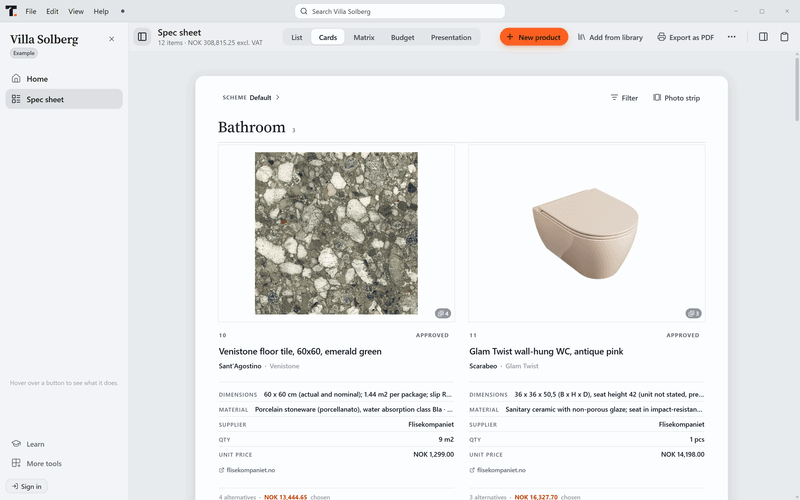
Cards
Pictures first, for choosing with a client.
Matrix
Your colour schemes side by side, room by room, with what each one costs.
Budget
Room totals, contingency and VAT, with price approval.
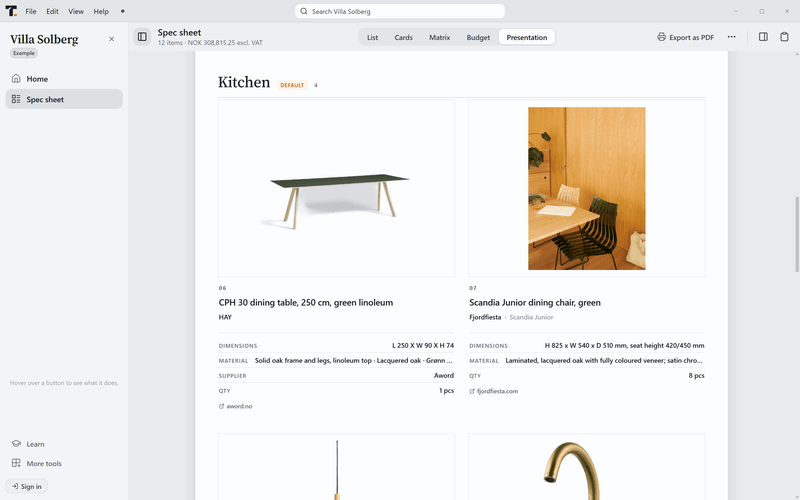
Presentation
What the client sees, ready to show on screen or print.
One product, everything about it.
Click a row and Properties opens beside the sheet, in the same panel as the Desk and at the same width. The bars above stay where they are.
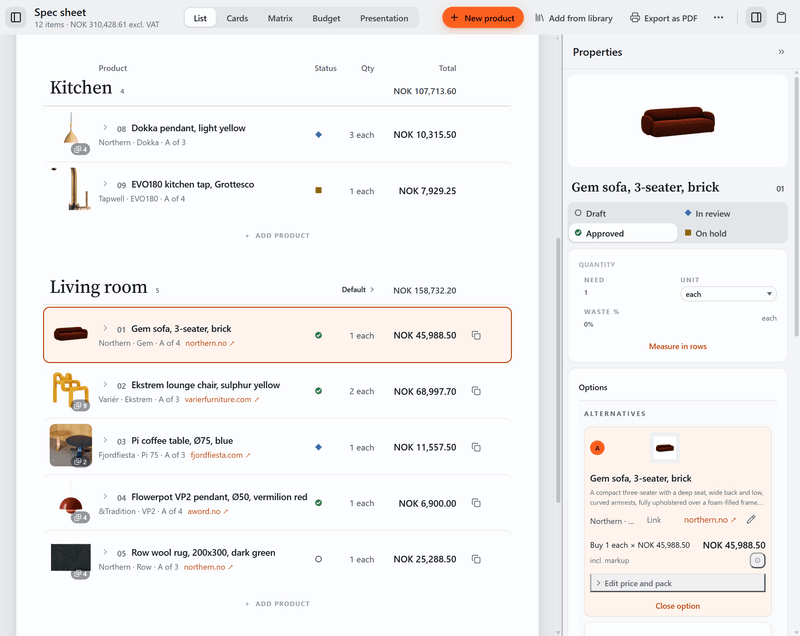
Options under the product
Collect the candidates for a product as options. They show under its row in the sheet, and you choose one when the client decides.
Measure in rows
Build a quantity from several measurements, such as one row per wall, and Tinn adds them up. One number is still the default.
Metric or imperial
Each project works in metric or imperial, and a single field can be the exception.
Goals, when you want them
Switch on goals for a project to set a budget and requirements for a product, such as a fire class, and see which options meet them. They are off until you switch them on, and they never print on the client's sheet.
The right photo, cleaned up.
Clip a product or drop in a picture, and Tinn does the tidying.
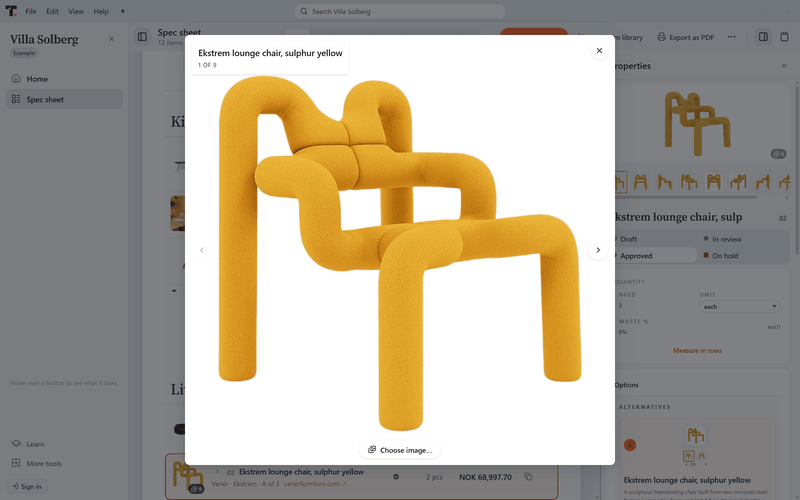
Background removed when it helps
A product shot on a busy background is cleaned to sit on white. A line drawing or a photo that is already clean is left as it is.
The main photo, picked for you
Tinn chooses the clearest product photo as the main one. Keep up to 12 for each product, and pick another with one click.
Full screen when you need it
Open any photo across the whole window and step through the rest with the arrow keys.
The money, without a second spreadsheet.
Budget is a view of the spec sheet, so it is never out of date. Every number comes from the rows you already have.
Price approval
Approve the prices when the client agrees. Tinn keeps that snapshot and shows what has changed since.
Excl. or incl. VAT
Choose how prices are entered and shown. Totals carry both.
Contingency
A buffer on top of the products, shown as its own line.
Markup that never prints
Add your percentage for your own numbers. It stays off every PDF.
Pattern repeat and waste
For wallpaper and fabric, the quantity counts the pattern repeat and the offcuts.
Clip it in.
The free Chrome clipper takes a product from any supplier page: name, price, code, size and pictures. It waits in your Tinn inbox until you drop it into the sheet.
The clipperPrint it out.
The printed spec sheet is a document your client can sign: a front page with your logo and the project details, a contents page, a chapter for each room, page numbers, and every total on the last page. Print it as a Specification, or as a Client presentation with big photos and no prices.
Show the client the products, not the spreadsheet.
Presentation view lays out the products you picked for a client meeting, room by room, with big pictures. Show it on screen, or print it and leave it on the table.
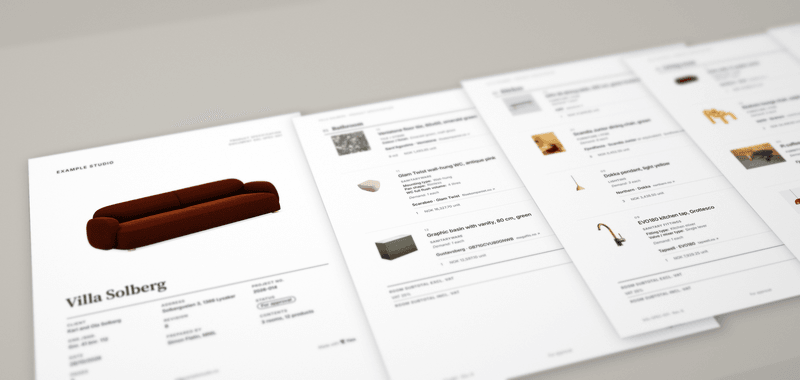
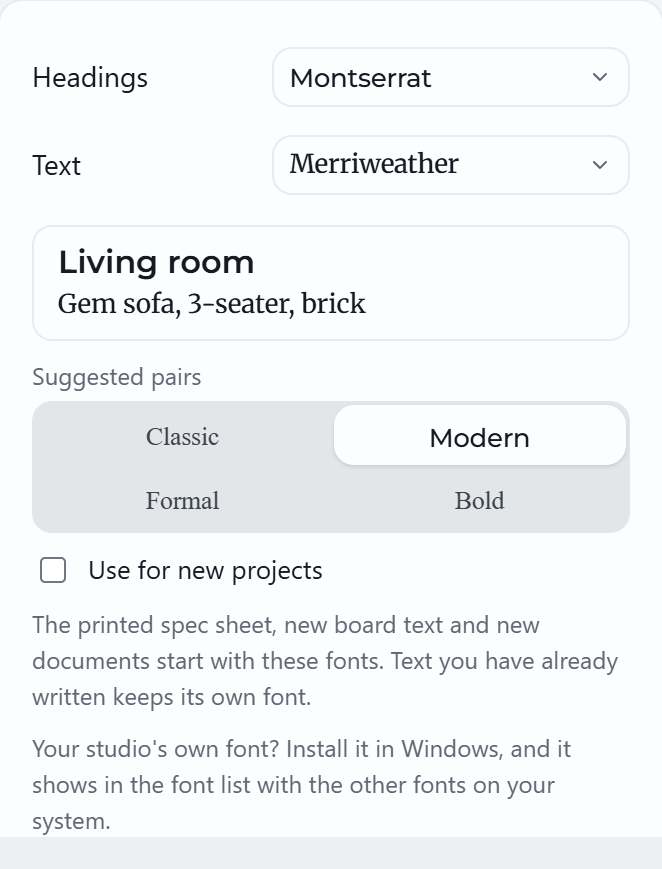
Your studio's look, in every project.
Each project has a heading font and a text font. Start from a ready pair such as Classic or Modern, or choose from the font library, and use the same pair for every new project. The sheet, the boards and the print follow.
Questions about the spec sheet
- Do I need an account?
- No. Download Tinn and start a project. An account is only for clipped products in the cloud, and it is free.
- Do I need to save?
- No. Tinn saves every change the moment you make it. There is no Save button, and closing the window loses nothing.
- Where is my project saved?
- In a .tinn file on your computer, wherever you choose to keep it. Back it up and send it like any other file.
- Is there something to try first?
- Yes. Villa Solberg, a sample project with real Norwegian products, opens from the welcome screen or the start screen. Change anything you like: it is your own copy.
- Can a colleague work on the same project?
- Not at the same time. Send them the .tinn file and they open it in their own Tinn.
- Can I send the sheet straight to a client?
- Yes, as a PDF. Your markup and your internal notes stay out of it.
Start your first sheet today.
Free. No account. Your project is a file on your computer.